

How to Set Up & Use Windscribe on a Chromebook


Windscribe on Chromebook comes in two flavors:
- The Chrome extension protects your Chrome browser traffic and gives you browser-level privacy tools.
- The Android app gives you broader system VPN coverage for Chrome windows, Chrome apps, and Android apps if your Chromebook supports Android apps.
That choice matters. The extension is great if you mostly live in Chrome and want quick browser protection. The Android app is the better option if you want supported Chromebook traffic routed through a full VPN tunnel.
This guide shows you how both options work, what each one protects, and which settings are worth turning on.
Choose the Right Windscribe Setup
Before you install anything, decide what you actually need.
- Chrome extension: Browser-only protection inside Chrome.
- Android app: Broader system VPN coverage for Chrome windows, Chrome apps, and Android apps on supported Chromebooks.
The Chrome extension is lighter and browser-focused. It can proxy Chrome traffic through Windscribe servers and includes tools like ad blocking, tracker blocking, cookie-consent-banner blocking, WebRTC blocking, time zone spoofing, and location spoofing.
The Android app is the full-tunnel option. It can route Chrome windows, Chrome apps, and Android apps through an encrypted VPN tunnel and provides access to VPN features such as R.O.B.E.R.T., Split Tunneling, GPS spoofing, and protocol selection.
In plain English:
- Chrome extension = Chrome tabs.
- Android app = Chrome and Android apps on your Chromebook, if your device supports it.
Before You Start
A few things to check before setup:
- Chrome extension support: If your Chromebook allows Chrome extensions, you can install the Windscribe extension from the Chrome Web Store. If your Chrome version supports it, use the newer MV3 version.
- Google Play support: To use the Android app, your Chromebook needs access to the Google Play Store and Android apps. Not every Chromebook supports this.
- Managed Chromebook restrictions: If your Chromebook belongs to a school, workplace, or organization, your admin may block extensions, Android apps, VPN apps, Google Play, or VPN configuration changes. In that case, Windscribe may be blocked before it gets a chance to be useful. Very supervised. Very laminated-hall-pass energy.
- A Windscribe account: Free accounts get 2 GB of data per month by default, or up to 10 GB per month after confirming an email address.
- Paid options, if you need more: Pro gives you unlimited data, all VPN locations, and full R.O.B.E.R.T. access for $9/month or $69/year. Build A Plan lets you pick locations for $1 per location per month, with a $3 monthly minimum. You can add unlimited data and full R.O.B.E.R.T. access for an extra $1/month.
Option 1: Set Up the Windscribe Chrome Extension
Use the Chrome extension if you only want Windscribe inside your browser.
This is the simplest setup for Chromebook users who mostly browse the web and don’t need broader system VPN coverage.
Install the Chrome Extension
- Open the Chrome Web Store on your Chromebook.
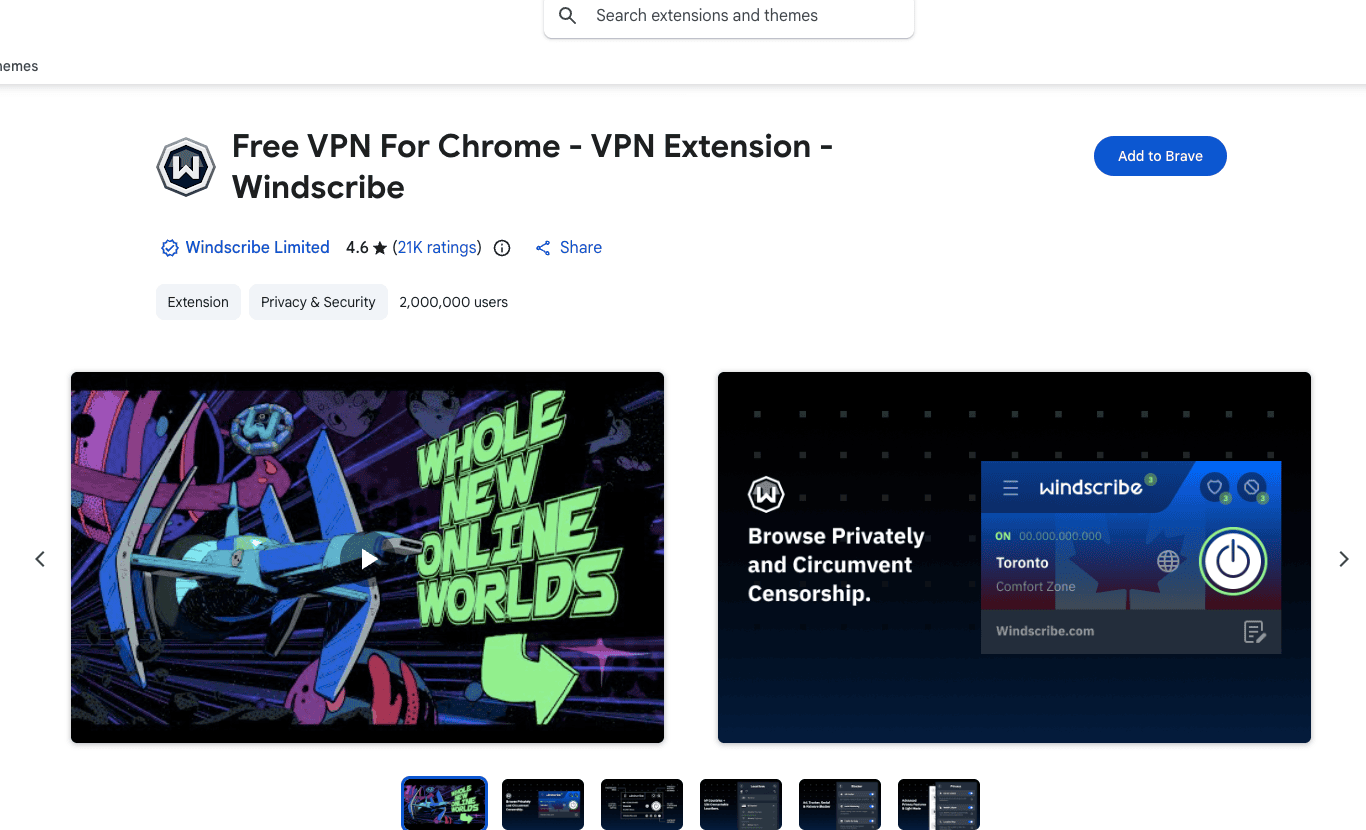
Windscribe’s Chrome Web Store listing viewed in Brave. The install button uses a browser-specific label.
- Search for Windscribe.
- Install the Windscribe Chrome extension.
- Pin it to your toolbar if you want quick access.
- Open the extension and log in with your Windscribe account.
- Choose a location and connect.
Once connected, Chrome browser traffic is routed through Windscribe servers. Websites you visit in Chrome will see the Windscribe server IP address instead of your regular IP address.
What the Chrome Extension Does
The Chrome extension is built for browser-level privacy. It can:
- Route Chrome browser traffic through Windscribe servers
- Mask your IP address inside Chrome
- Block ads
- Block trackers
- Block WebRTC leaks
- Block cookie consent banners
- Spoof your browser time zone
- Spoof your browser location
- Help reduce browser fingerprinting signals
This makes it useful for everyday browsing, testing websites from another location, and reducing the amount of tracking junk that follows you around the web like a needy raccoon.
What the Chrome Extension Doesn’t Do
The Chrome extension doesn’t protect your whole Chromebook.
It doesn’t cover Android apps or Linux apps, nor does it create a system VPN tunnel. It also doesn’t give you full VPN features like Split Tunneling or system-level leak blocking.
Use the extension if you want Chrome browser coverage.
Use the Android app if you want broader VPN coverage for Chrome and Android apps.
Option 2: Set Up the Windscribe Android App
Use the Android app if you want broader system VPN coverage on a Chromebook that supports Google Play.
This is the better choice for public Wi-Fi, travel, school, work, and any situation where browser-only coverage is not enough.
Install the Android App From Google Play
- Open the Google Play Store on your Chromebook.
- Search for Windscribe VPN.
- Select the Windscribe app.
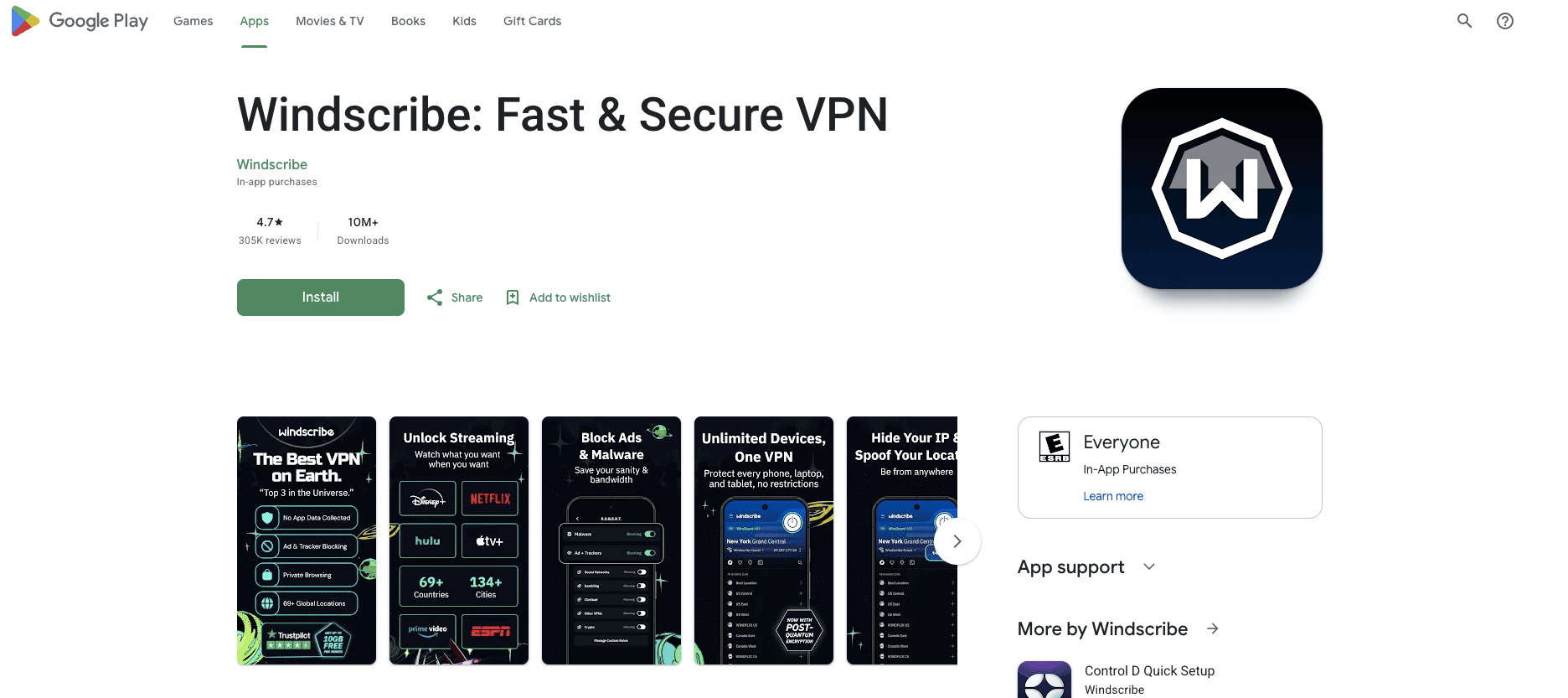
Windscribe’s Google Play web listing, with account-specific details removed.
- Click Install.
- Once installation finishes, click Open or launch Windscribe from your app launcher.
This is the recommended system VPN setup. It is boring in the best way.
Connect the Android App
- Open Windscribe from your Chromebook app launcher.
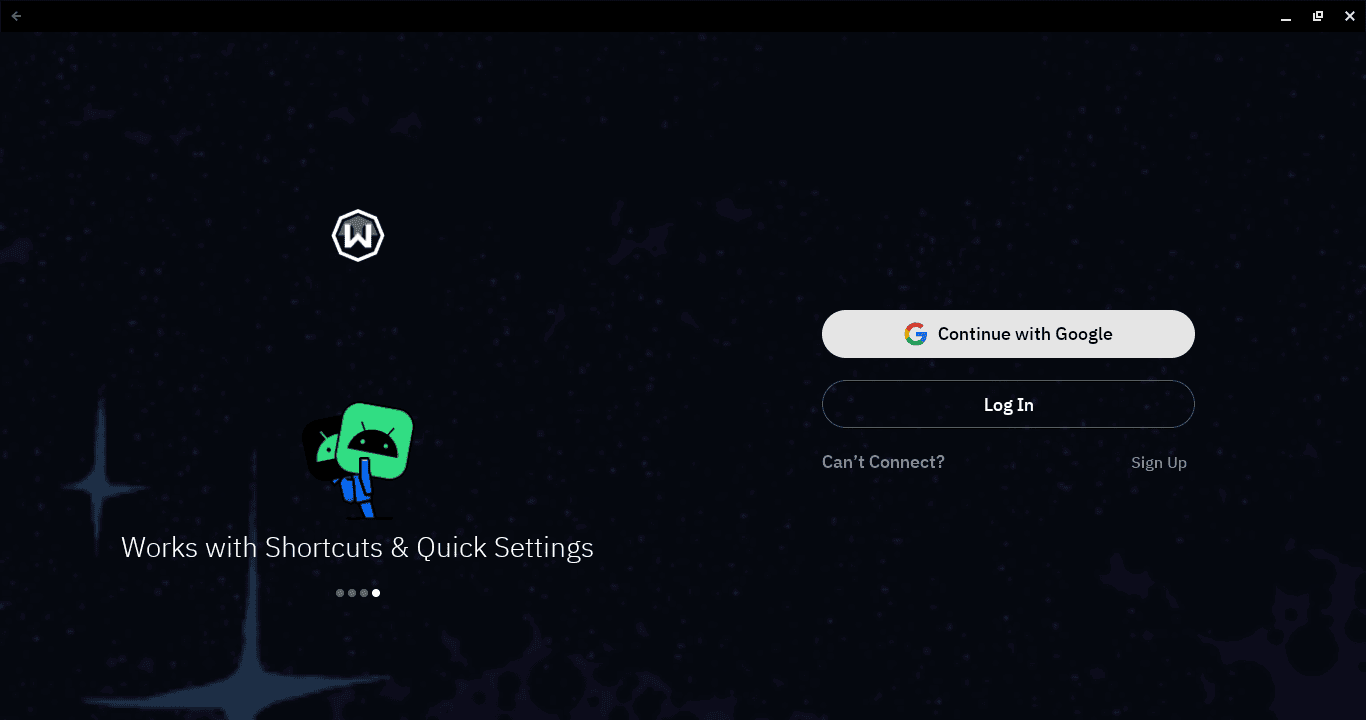
Windscribe’s signed-out welcome screen on a Chromebook.
- Log in with your Windscribe username and password, continue with Google, or create a free account.
- Tap the large power button.
- When ChromeOS asks for permission to set up the VPN connection, click OK.
- Windscribe will connect to the best available location automatically.
- To choose a location yourself, open the location list and pick a country or city.
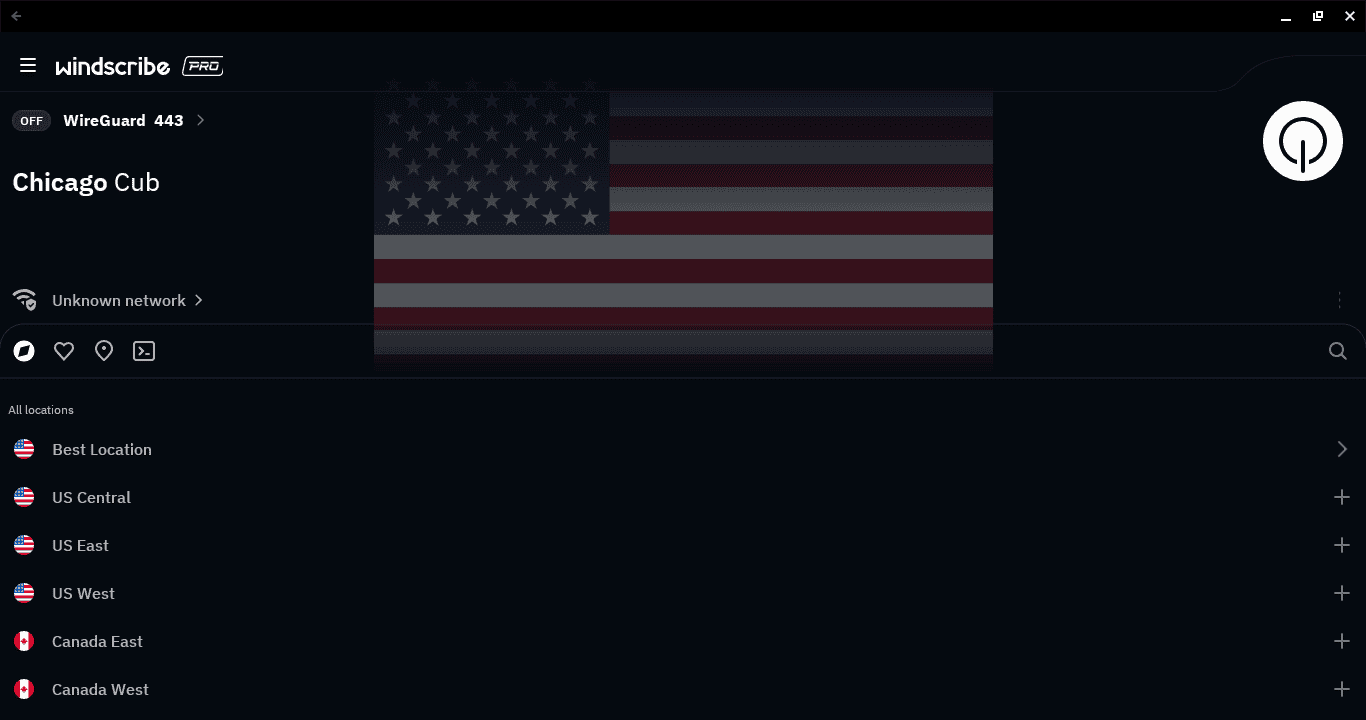
The Windscribe location list open on a Chromebook before connecting. The public IP address has been redacted.
- To disconnect, tap the power button again.
Location note: Free accounts can connect only to free locations. Windscribe offers servers in 10 countries on the free plan. Paid locations are marked with a star and require either Pro or a Build A Plan subscription that includes that location.
Advanced Fallback: Manual APK Installation
If Google Play is unavailable, advanced users can install the Android APK manually.
This is not the recommended route for most people. Sideloading an APK on a Chromebook is more complicated than installing one on an Android phone. Depending on your device, you may need Developer Mode or Android Debug Bridge setup, which can change security settings and may not be allowed on managed Chromebooks.
If you know what you are doing:
- Download the signed Android APK directly from the Windscribe download page.
- Follow the sideloading method supported by your Chromebook.
- Install the APK and approve the security prompts.
- Open Windscribe from your app launcher.
If this is a school or work Chromebook, do not expect sideloading to work unless your admin allows it. ChromeOS will simply say no, probably without blinking.
Settings for the Chrome Extension
These settings apply to the Windscribe Chrome extension. They protect browser activity, not the entire Chromebook.
Ad and Tracker Blocking
The extension can block many ads and trackers before they load in Chrome.
This helps reduce page clutter, cuts down on tracking, and makes the web feel slightly less like a shopping mall with security cameras in every plant.
WebRTC Blocking
WebRTC can sometimes expose your real IP address through the browser.
Windscribe’s extension can limit WebRTC requests, which helps prevent websites from using browser behavior to see more than they should.
Cookie Consent Banner Blocking
The extension’s Cookie Go Away feature can block annoying “We use cookies” consent banners.
This reduces interruptions while browsing. It does not delete cookies that are already stored in Chrome or erase your internet history.
Time Zone and Location Spoofing
The extension can spoof your browser time zone and location signals.
This helps make your browser look more consistent with the Windscribe location you choose. For example, if you connect through Norway, your browser does not also need to shout, “Actually, I am in your apartment.”
Settings for the Android App
These settings apply to the Windscribe Android app running on Chromebook.
Always-on VPN
Always-on VPN tells ChromeOS to keep Windscribe connected.
To find it, open Settings > Apps > Manage Google Play preferences > Android Settings > Network & internet > VPN. Tap the gear icon beside Windscribe, then enable Always-on VPN.
This helps keep the VPN from becoming one more thing you remember only after joining suspicious public Wi-Fi.
Block Connections Without VPN
Block connections without VPN is the stricter companion to Always-on VPN.
When this is enabled, ChromeOS blocks traffic if the VPN connection stops. Instead of falling back to your normal internet connection, your Chromebook waits until the VPN is back.
Use this if leak protection matters more than convenience. The tradeoff is that apps trying to bypass the VPN may stop working.
R.O.B.E.R.T.
R.O.B.E.R.T. is Windscribe’s customizable DNS-level blocker.
While you are connected through Windscribe, R.O.B.E.R.T. can block many ads, trackers, malware, phishing, and other unwanted domains before they load on your Chromebook.
This is especially useful on a Chromebook because so much of Chromebook life happens in the browser. Fewer garbage domains loading in Chrome is usually a win, unless your hobby is being profiled by ad networks.
You can manage R.O.B.E.R.T. from the Windscribe app or on the web, on the Blocking Categories page under Security in My Account.
Split Tunneling
Split Tunneling lets you choose which Android apps use Windscribe and which ones bypass it.
On Chromebook, this depends on how the app behaves under ChromeOS. Some Android apps follow routing rules cleanly. Others may need testing because ChromeOS is basically Chrome, Android, Linux support, and admin policy stacked in a trench coat.
One important caveat: if you enable Always-on VPN and Block connections without VPN, Split Tunneling may not behave the way you expect. Apps you try to send outside the VPN may get blocked instead, because the stricter setting wins.
GPS Spoofing
The Android app includes GPS spoofing features for supported Android-side behavior.
This can help reduce location mismatch between your selected Windscribe location and what certain apps think your device location is. It does not teleport your Chromebook. It just makes some location signals less nosy.
Best Setup for a Chromebook
The best setup depends on what you want Windscribe to protect.
For browser-only privacy: install the Chrome extension, connect inside Chrome, and turn on the browser privacy tools you need: ad blocking, tracker blocking, WebRTC blocking, cookie-consent-banner blocking, time zone spoofing, and location spoofing.
For broader system VPN coverage: install the Android app from Google Play, connect once, enable Always-on VPN, and turn on Block connections without VPN if you want stricter leak protection.
Do not use the Chrome extension and assume your whole Chromebook is covered. That is how people end up confidently wrong, which is the worst kind of wrong.

