

How do I use Clear Wi-Fi History?


Clear Wi-Fi History removes Wi-Fi connection history from your computer to protect your privacy. Wi-Fi network names (SSIDs) and MAC addresses can be used to track your physical location and movement history by correlating them with public Wi-Fi databases.
Important: Your currently connected Wi-Fi network is preserved. You will stay connected.
How to enable it
-
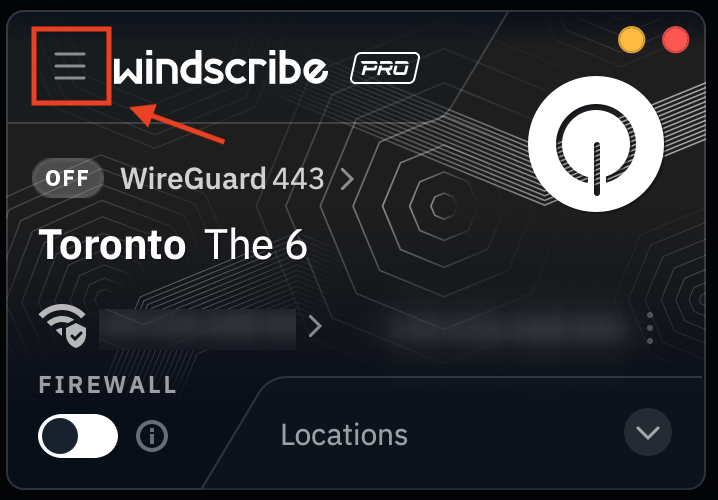
Open Windscribe Preferences
-
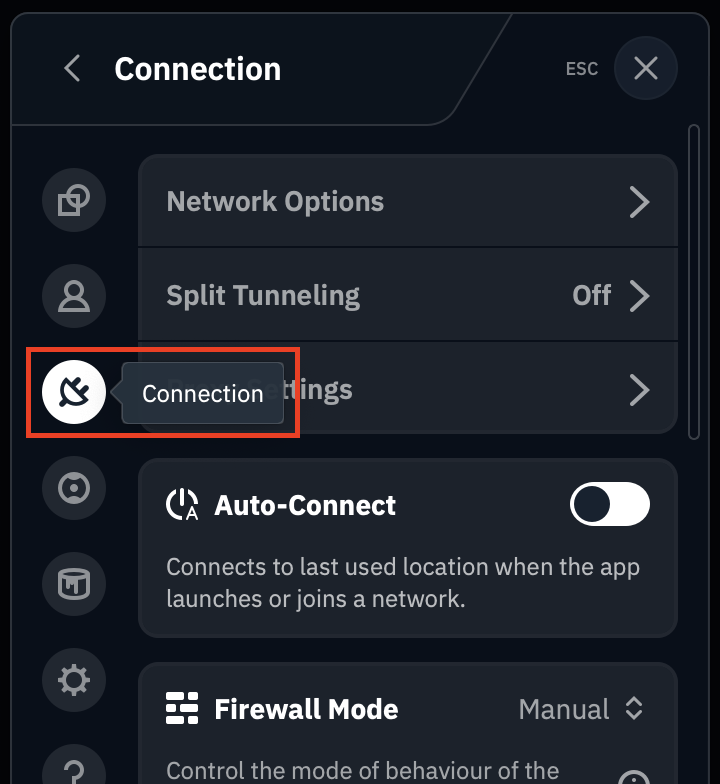
Go to Connection
-
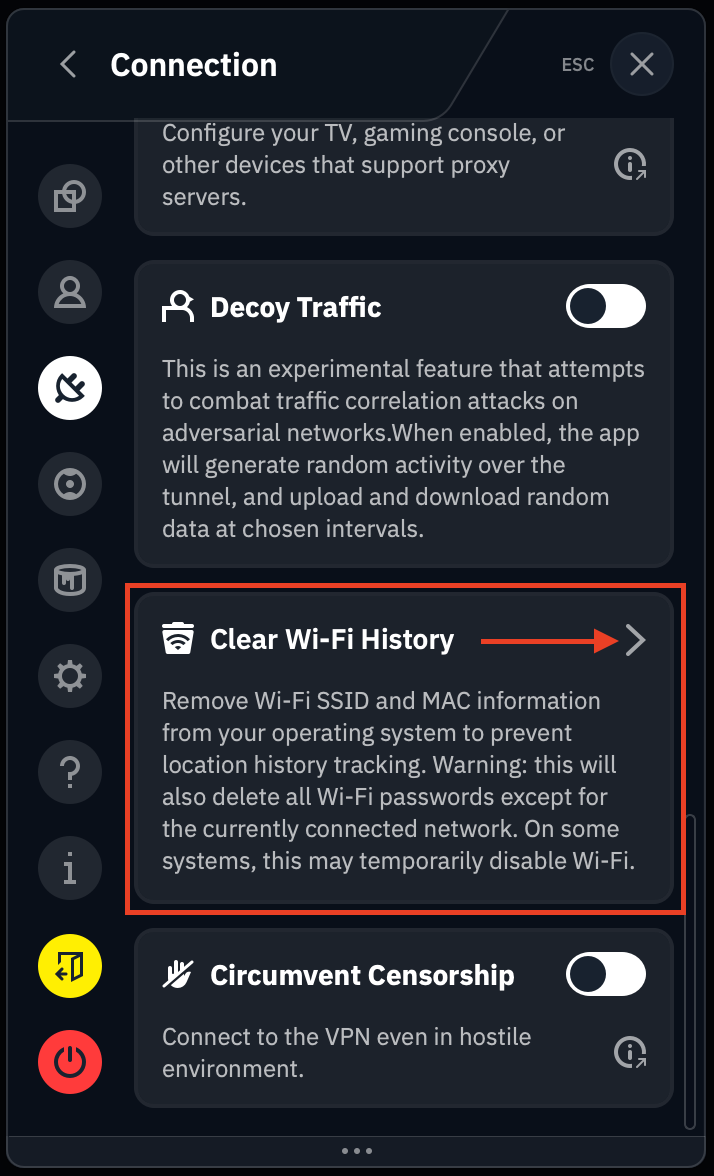
Scroll down to Clear Wi-Fi History and click the arrow
-
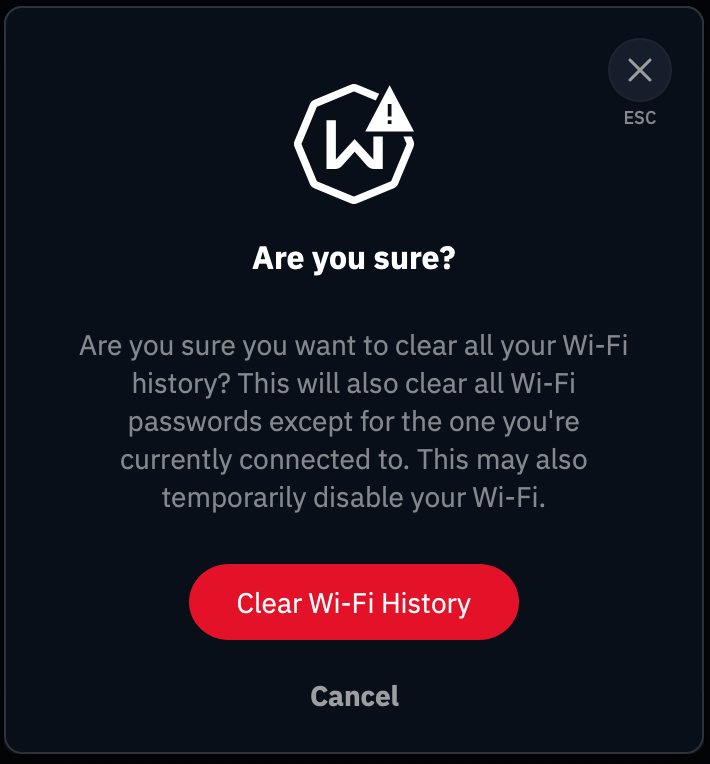
Then click “Clear Wi-Fi History”.
What gets removed
Windows
1) Windows Event Logs
-
WLAN-AutoConfig event log: contains Wi-Fi connection and disconnection events.
-
NetworkProfile event log: records when you connect to different networks.
-
NCSI event log: network connectivity detection events.
Location: Event Viewer → Applications and Services Logs
How to check: Open Event Viewer and compare these logs before and after clearing.
2) Network Profiles (Registry)
-
All saved network connection information.
-
Network names, types, and metadata.
Location: HKEY_LOCAL_MACHINE\SOFTWARE\Microsoft\Windows NT\CurrentVersion\NetworkList\Profiles
How to check: Open Registry Editor (regedit) and navigate to this path.
3) Network Signatures (Registry)
-
Unique identifiers for each network you have connected to.
-
Both managed and unmanaged network signatures.
Location: HKEY_LOCAL_MACHINE\SOFTWARE\Microsoft\Windows NT\CurrentVersion\NetworkList\Signatures
How to check: Check both Unmanaged and Managed subkeys in Registry Editor.
4) NLA Cache (Registry)
-
Network Location Awareness cache.
-
Stores detailed network metadata and timestamps.
Location: HKEY_LOCAL_MACHINE\SOFTWARE\Microsoft\Windows NT\CurrentVersion\NetworkList\Nla
How to check: Look for Cache and Wireless subkeys in Registry Editor.
5) Wi-Fi profile files
-
All saved Wi-Fi networks and their passwords.
-
Except your currently connected network.
How to check: Open Command Prompt and run:
-
Before: netsh wlan show profiles
-
After: netsh wlan show profiles (should only show the current network)
macOS
1) Wi-Fi preferred networks
-
All saved Wi-Fi networks in system preferences.
-
Network names (SSIDs) and connection priorities.
-
Except your currently connected network.
How to check: System Settings / System Preferences → Network → Wi-Fi → Advanced
-
Before clearing: you will see a list of known networks.
-
After clearing: only the current network (if connected) should remain.
2) Wi-Fi passwords from Keychain
-
Saved passwords for all Wi-Fi networks.
-
Stored in the macOS System Keychain.
-
Except the password for the currently connected network.
Known limitation: Passwords stored in the Local Items keychain cannot be removed programmatically. These passwords are protected by iCloud Keychain and require manual deletion.
How to check: Open Keychain Access
-
Search for AirPort network password in the System keychain.
-
Before clearing: multiple Wi-Fi password entries.
-
After clearing: only the current network password (if connected).
Note: Check Local Items separately. Passwords there require manual removal.
3) Wi-Fi diagnostic logs
-
System logs containing Wi-Fi connection history.
-
Connection timestamps and network changes.
Locations cleaned:
-
/var/log/Wi-Fi.log*
-
/Library/Logs/DiagnosticReports/Wi-Fi*
-
/private/var/log/Wi-Fi-*
How to check: Open Terminal and run:
ls -la /var/log/Wi-Fi* 2>/dev/null
4) Network configuration files
-
SystemConfiguration preferences.
-
Cached network information.
How to check: Compare the Wi-Fi network list before and after in System Settings / System Preferences.
Linux
1) NetworkManager Wi-Fi connections
-
All saved Wi-Fi network configurations.
-
Network names, passwords, and security settings.
-
Except your currently connected network.
Location: /etc/NetworkManager/system-connections/
How to check:
-
nmcli connection show
-
or sudo ls -la /etc/NetworkManager/system-connections/
-
Before: multiple Wi-Fi connection files.
-
After: only current connection (if any).
2) NetworkManager state files
-
Connection timestamps.
-
Recently seen Wi-Fi access points (BSSIDs).
-
Internal configuration cache.
Locations:
-
/var/lib/NetworkManager/timestamps
-
/var/lib/NetworkManager/seen-bssids
-
/var/lib/NetworkManager/NetworkManager-intern.conf
How to check: sudo ls -la /var/lib/NetworkManager/
3) wpa_supplicant configuration
-
Wi-Fi configurations when using wpa_supplicant directly.
-
Network credentials and security settings.
-
Except currently connected network.
Location: /etc/wpa_supplicant/*.conf
How to check: sudo ls -la /etc/wpa_supplicant/
Note: Files are either removed completely (if no active connection) or updated to keep only the current network.
4) iwd (iNet Wireless Daemon) profiles
-
Network profiles if using iwd instead of NetworkManager.
-
Files named SSID.psk, SSID.open, or SSID.8021x.
-
Except currently connected network.
Location: /var/lib/iwd/
How to check: sudo ls -la /var/lib/iwd/
5) systemd journal logs
-
Service logs for NetworkManager, wpa_supplicant, and iwd.
-
Connection and disconnection events.
How to check:
-
Before: journalctl -u NetworkManager
-
After: journalctl -u NetworkManager (should be minimal)
6) NetworkManager reload
-
After clearing files, NetworkManager is restarted.
-
This ensures changes take effect and clears the memory cache.
How to verify: systemctl status NetworkManager