

How To Use Windscribe With uTorrent


A Windscribe setup guide for uTorrent on Windows. This is not a guide for uTorrent Web, which runs in the browser and does not expose the settings below.
Read This First
Every setting in this guide is tuned specifically for uTorrent Classic (the desktop app for Windows), not uTorrent Web and not the mobile app. The advanced setting names below are specific to the desktop client. The interface binding and firewall sequence described here are meant for a torrent client and nothing else. Do not copy these settings into your browser, your email client, or any other application, since doing so may break that application's connection or create an undetected leak. uTorrent Classic only.
Legal note: only use torrents for content you have the right to download or share. A VPN protects your privacy; it does not alter copyright law.
Introduction and Scope
When you torrent over a standard internet connection, your traffic is fully visible in two places:
- Your ISP can see that you are making peer-to-peer (P2P) connections along with the associated metadata.
- The swarm (every other peer downloading or seeding the same file) can see your real public IP address.
Because P2P technology requires peers to connect directly to one another, it broadcasts your network location to strangers by design. A VPN addresses this by wrapping your traffic in an encrypted tunnel and replacing your public IP with the VPN server's IP address. This guide details how to configure this connection securely using Windscribe.
The Firewall Rule vs. the Kill Switch
Most VPNs utilize a reactive "kill switch." If the VPN tunnel drops, a kill switch detects the failure and attempts to disconnect your internet connection. However, in the brief window between the tunnel failing and the software responding, your real IP address can leak to the swarm.
Windscribe's Firewall functions proactively. Instead of reacting to a connection failure, it blocks traffic outside the VPN tunnel from the moment it is enabled.
Think of it like a closed security gate: a standard kill switch tries to slam the gate shut after it notices a breach. Windscribe's Firewall keeps the main gate permanently locked and only allows traffic through the secure VPN side-door. With the Firewall set to Always On, uTorrent has no physical path to the open internet if the tunnel drops or the app crashes.
Step-by-Step Configuration Guide
This setup requires configuring Windscribe to lock down the system connection, then configuring uTorrent to align with the VPN adapter.
Plan restrictions
Peer-to-peer traffic is a paid-plan feature. It works on Full Pro, and on Build-a-Plan for the server locations included in your plan. It is disabled on free servers, and it is only available on server locations that allow P2P. Restricted locations are marked with a crossed-out P2P icon in the app. On a free account, these steps will secure the client, but your torrents will not transfer until you connect to a P2P-allowed server on a paid plan.
Part A: Lock Down Windscribe
- Open the Windscribe desktop app, click the menu button (three horizontal lines), and select Preferences.
- Navigate to Preferences > Connection > Firewall Mode and select Always On.
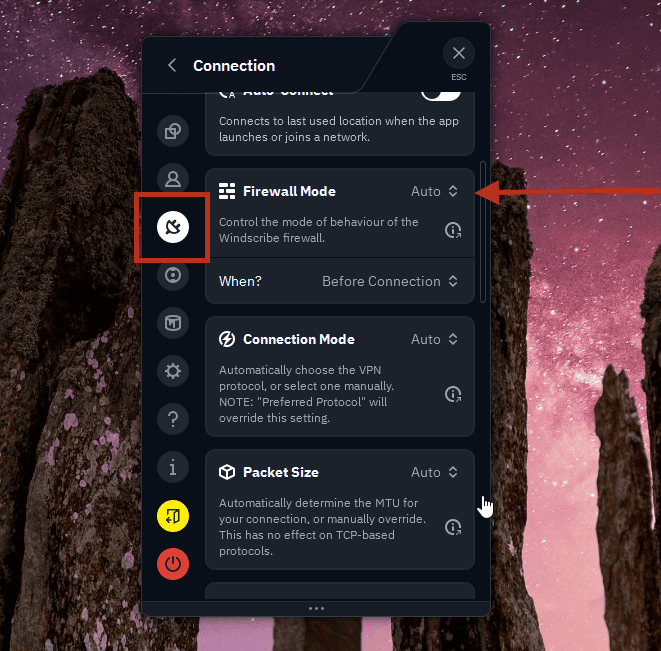
Firewall Mode set to Automatic (default)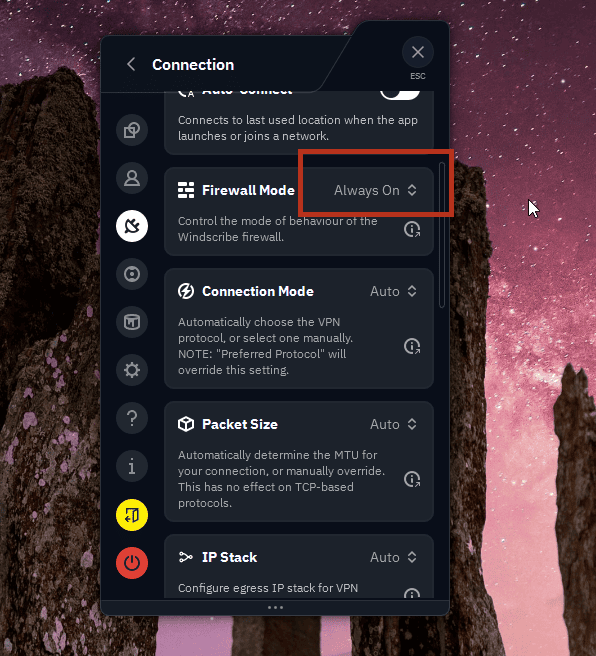
Firewall Mode set to Always On (what you want) - Under the same Connection menu, set Connection Mode to Manual, then choose WireGuard (recommended for speed) or UDP (OpenVPN over UDP).
- Return to the main screen, open the location list, and connect to a server that supports P2P (ensure it does not display a crossed-out P2P icon). Select a location geographically close to you for optimal performance.
Part B: Align uTorrent with the VPN
While the Always-On Firewall prevents traffic leaks, configuring these local settings ensures uTorrent interacts correctly with the network interface.
- Open uTorrent Classic and navigate to Options > Preferences (or press Ctrl + P).
- Select the Connection tab. Under Proxy Server, set the Type to (none).
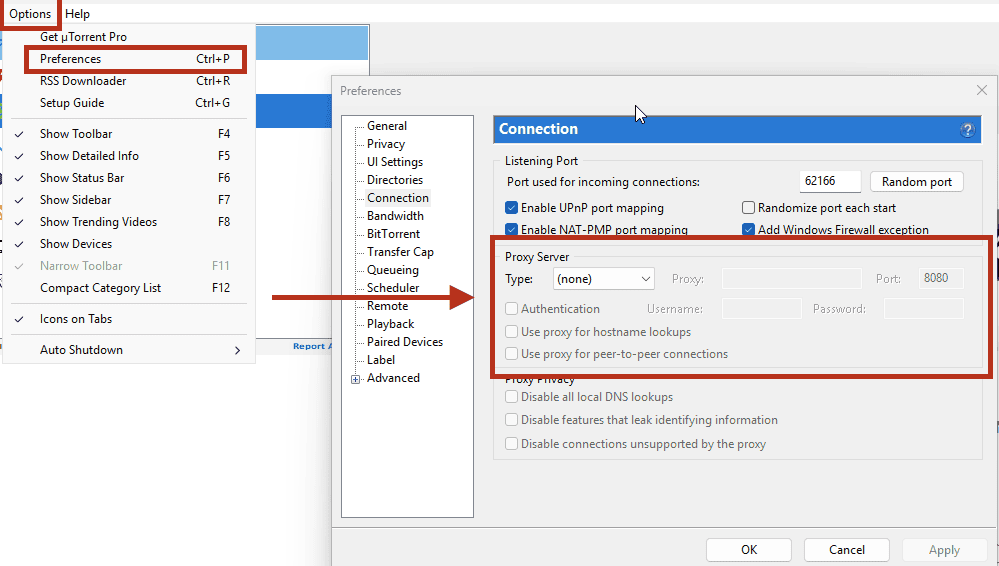
uTorrent's Options > Preferences > Connection panel, Proxy Type set to (none) - In the same Connection tab, manage your port mapping. For a strict privacy-first configuration, uncheck Enable UPnP port mapping and Enable NAT-PMP port mapping.
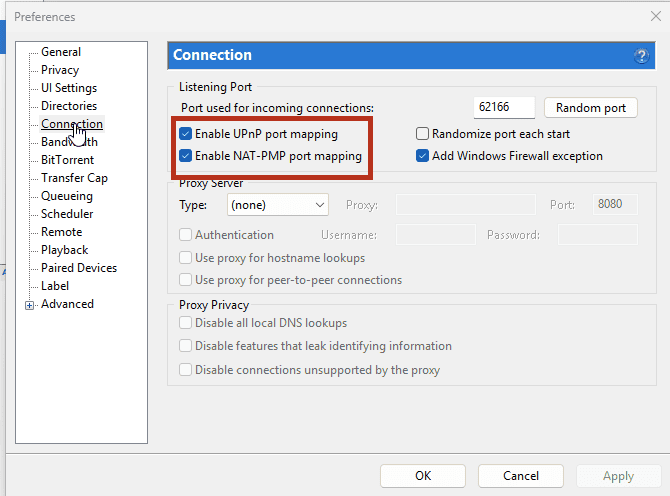
Where to find the Enable UPnP port mapping and Enable NAT-PMP port mapping options in uTorrent's Connection panel - Optional failsafe (interface binding): select the Advanced tab. Use the filter box to locate and modify net.bind_ip (controls incoming adapter binding) and net.outgoing_ip (controls outgoing adapter binding). Set both values to the private IP on the Windscribe VPN interface, not the public VPN IP address shown on external IP-checking websites. Click Set after updating each string, then click Apply.
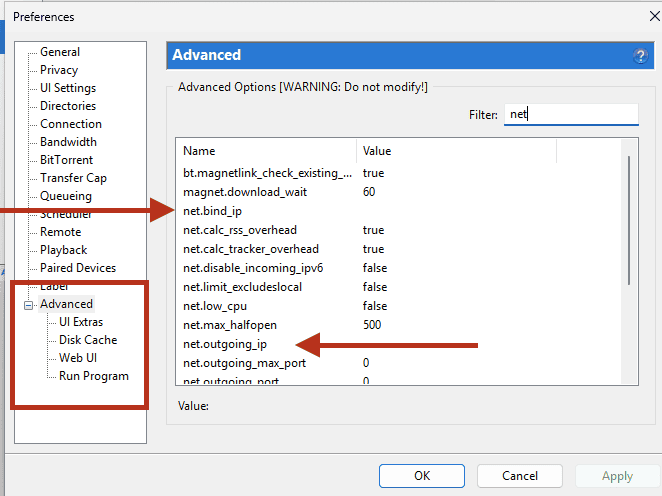
Locating net.bind_ip and net.outgoing_ip in uTorrent's Advanced tab
Note: Windscribe has retired its legacy standalone SOCKS5 proxy service. Any old proxy configurations left in these fields will cause connection failures.
Note: disabling UPnP and NAT-PMP prevents your router from automatically opening ports, which may reduce your incoming peer connections and slow down seeding. If you require inbound connectivity, use Windscribe's native port forwarding options instead.
Caveat: the private IP assigned to the VPN adapter can change between connection sessions, requiring manual updates when it does. Furthermore, Windows may occasionally bypass adapter binding constraints depending on interface metric priorities. Treat interface binding as a secondary failsafe; your primary leak protection remains the Always-On Firewall.
Inbound Connectivity and Seeding Performance
- Pro users: you can utilize ephemeral port forwarding at no extra charge. Generate a temporary port via My Account > Port Forwarding, then connect to a P2P-allowed location. These ports remain active for seven days before expiring.
- Build-a-Plan and free: no ephemeral port forwarding. Build-a-Plan can carry P2P traffic on the paid P2P-enabled locations in your plan, but ephemeral port forwarding is a Pro-only feature.
- Static IPs: for a permanent forwarded port, a Static IP add-on is required, billed on top of a Pro subscription. Warning: Residential Static IPs explicitly prohibit P2P traffic. If you are purchasing a permanent port specifically for torrenting, ensure you select a Datacenter Static IP.
The Safe Execution Sequence
To prevent traffic exposure during application updates or system changes, establish a consistent startup and shutdown routine:
Startup Sequence
- Verify that the Windscribe Firewall is active and set to Always On.
- Connect to a P2P-enabled Windscribe server and wait for the connection to confirm.
- Launch uTorrent Classic.
Shutdown Sequence
- Fully exit uTorrent Classic. Do not click the "X" button if it is configured to minimize to the system tray. Use File > Exit to ensure all background P2P operations have stopped completely.
- Disconnect the Windscribe VPN connection.
Verifying the Secure Connection
Standard IP websites only check your web browser's connection, which will not detect a torrent-specific leak. Use a dedicated torrent tracker test to verify your configuration while the VPN is active and uTorrent is running:
- Navigate to ipleak.net in your browser.
- Locate the Torrent Address detection section and activate the test to generate a unique tracking magnet link.
- Copy the magnet link, open uTorrent, select File > Add Torrent from URL, and paste the link.
- Allow the torrent to run for several seconds, then return to the ipleak.net page to view the reported IP address.
- Verify that the address displayed under the torrent section does not match your home internet IP, and does match the public Windscribe server IP. If your real home IP address appears in the torrent section, halt all active transfers immediately and recheck your Firewall configurations.
A Quick Note on R.O.B.E.R.T.
Windscribe's server-side blocker, R.O.B.E.R.T., filters malicious domains and trackers at the DNS level. The default blocklists do not interfere with standard public torrent trackers. However, custom user configurations might.
If your torrent downloads fail to connect or display tracker errors despite a confirmed VPN connection, review your personal blocking rules. Log into your account, navigate to My Account > Security, check the Blocking Categories and Custom Rules pages for conflicting domains, turn off the suspect blocklist, and restart uTorrent.
Frequently Asked Questions
Why doesn't this guide use proxy credentials inside uTorrent?


Does a SOCKS5 proxy provide data encryption?
What happens if the Windscribe background process crashes?
Service Tiers and Resources
Windscribe provides a free tier with 10GB of data per month upon email confirmation. For P2P operations, Full Pro or a Build-a-Plan is required to access the paid locations that allow P2P traffic.